


Using the plugin with Divi 4 #
With Course Page Builder for LearnDash and Divi, you can design your LearnDash course pages using the Divi 4 Builder and place LearnDash elements wherever you want in your layout.
On Divi 4, you use shortcodes to display the course information bar, action button, and course content list.
Before You Begin #
Make sure you have:
• Divi 4 installed and activated.
• LearnDash LMS installed and activated.
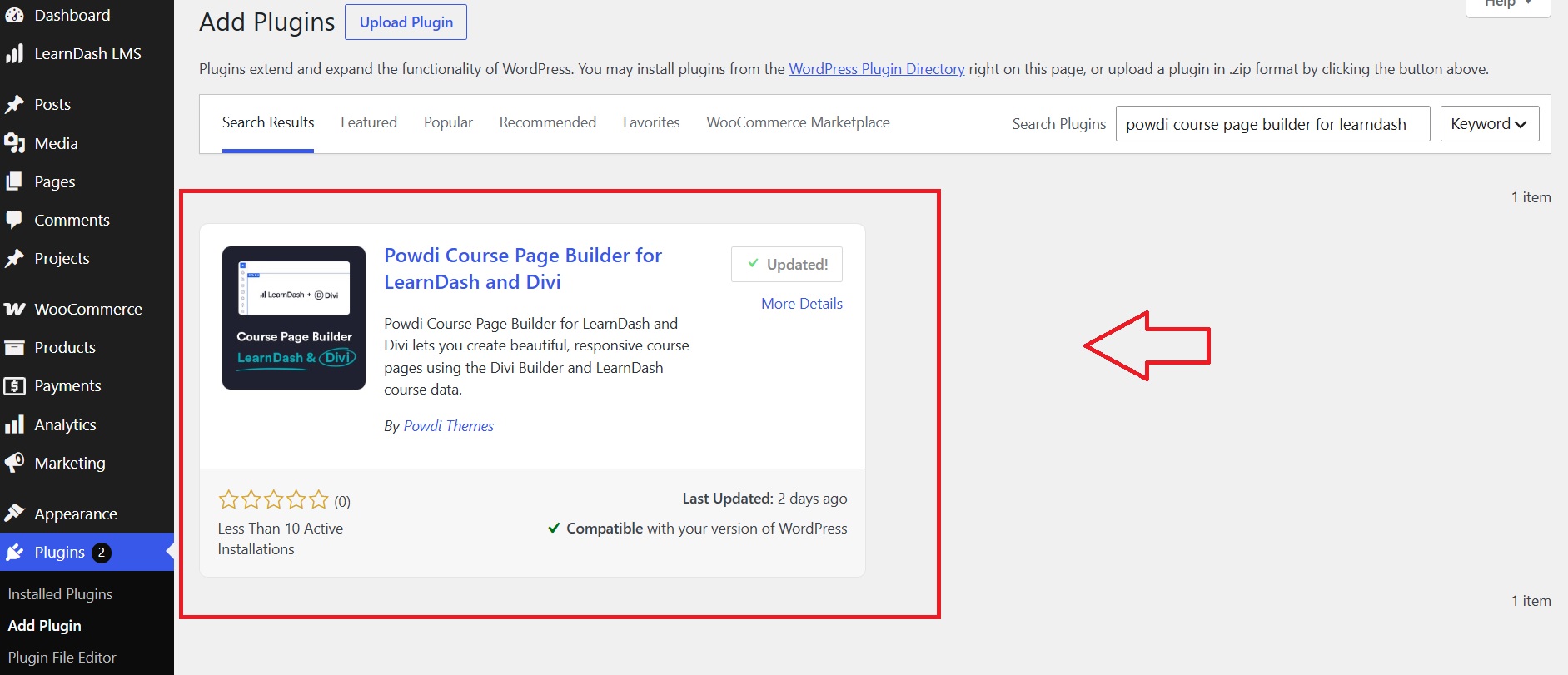
• Course Page Builder for LearnDash and Divi installed and activated.
The plugin automatically disables LearnDash’s default course information bar and course content list, removes the extra spacing around the course page, and removes the theme’s default title and sidebar.
There’s no additional plugin configuration required. You can start building your custom course page right away.
Step 1: Open Your Course in the Divi Builder #
1. From your WordPress Dashboard, go to LearnDash LMS → Courses..
2. Open the course you want to customize.
3. Launch the Divi Builder.
4. Build your layout using Divi sections, rows, columns, and modules.
You can create your own design from scratch or use a ready-made layout as a starting point.
Remember to leave space in your layout for the LearnDash elements you want to display, such as the course information bar, action button, and course content list.
Step 2: Add the LearnDash Elements #
To display LearnDash elements within your custom design, add a Code module wherever you want an element to appear, then paste the corresponding shortcode into it.
Course Information Bar #
Use this shortcode to display the full LearnDash course information bar:
[powdcopa_course_infobar] #
The information bar displays the relevant course status information. For visitors who haven’t enrolled, this can include course details, pricing, and the purchase or enrollment button. For enrolled students, it displays their course progress.
Course Action Button #
If you want to display the action button separately from the full information bar, use:
[powdcopa_course_action_button] #
This displays the relevant action button, such as a login or enrollment button, when the visitor hasn’t yet enrolled or taken the required action.
The button is not displayed for users who are already enrolled. This shortcode is useful when you want to position your call to action in a different part of the page from the course information bar.
Shortcode Parameters #
The [powdcopa_course_infobar] shortcode doesn’t require any parameters.
The [powdcopa_course_action_button] shortcode accepts two optional parameters:
• font_size — sets the button’s font size. Accepts any valid CSS font-size value. Default: 12px.
• padding — sets the padding around the button text. Accepts any valid CSS padding value. Default: 5px 35px.
For example:
[powdcopa_course_action_button font_size=”16px” padding=”10px 40px”] #
Important: These parameters only affect the button for courses using LearnDash’s Closed access mode. For courses using Open, Free, Buy Now, or Recurring access modes, the button retains LearnDash’s styling. You can customize its appearance using CSS or Divi’s design options instead.
Course Content List #
To display the list of lessons, topics, and quizzes belonging to the course, use LearnDash’s native shortcode:
[course_content] #
This lets you position the course content wherever it fits best in your design, rather than relying on LearnDash’s default placement at the bottom of the page.
Example Layout #
You could, for example, create a course page with:
• A hero section containing the course title, introduction, and action button.
• A course information section displaying the course details.
• A course overview section explaining what students will learn.
• A course content section listing the lessons, topics, and quizzes.
These are just suggestions. You can arrange the elements in any order that suits your course and your website.
Step 3: Style the LearnDash Elements #
The shortcodes output the LearnDash elements with basic styling, so they don’t conflict with your website’s design. You can customize their appearance to match your brand.
For detailed instructions, including ready-to-use CSS examples, see our tutorial:
How to Design Your LearnDash Course Pages with Divi
The tutorial explains how to style the course information bar, action button, and course content list, and how to adjust the CSS to match your website’s colors, fonts, and overall design.
You can also use Divi’s layout and design options to control the placement and appearance of the sections and modules surrounding the shortcodes.
Step 4: Reuse Your Course Page Design #
If you have multiple courses, you don’t need to design every course page from scratch.
You can save your layout to the Divi Library and reuse it on other course pages. Alternatively, use the Divi Theme Builder to create a template for your course pages.
This helps you maintain a consistent design across your courses while allowing the content to remain specific to each course.
Want a Faster Starting Point? #
You can also download our four free Divi LearnDash course page layouts and customize one to suit your website, rather than creating the entire design yourself.
Need Help? #
• For installation instructions and an overview of the plugin, see Getting Started with Course Page Builder for LearnDash and Divi.
• For detailed styling instructions, read How to Design Your LearnDash Course Pages with Divi.
• If you’re using Divi 5, see Using Course Page Builder with Divi 5 for instructions on using the native Divi modules instead of shortcodes.