


Getting started with the plugin #
Course Page Builder for LearnDash and Divi is a free WordPress plugin that lets you design your LearnDash course pages using the Divi Builder.
By default, LearnDash automatically adds a course progress and status bar at the top of the course page and a course content list at the bottom. This can make it difficult to create a course page that matches the design of the rest of your website.
This plugin gives you control over the layout. It disables LearnDash’s default course-page elements and lets you add them back wherever you want within your custom Divi design.
The plugin works with both Divi 4 and Divi 5.
Requirements #
Before installing the plugin, make sure you have:
• The Divi Theme or Divi Builder installed and activated.
• LearnDash LMS installed and activated.
How to Install the Plugin #
1. From your WordPress Dashboard, go to Plugins → Add New Plugin.
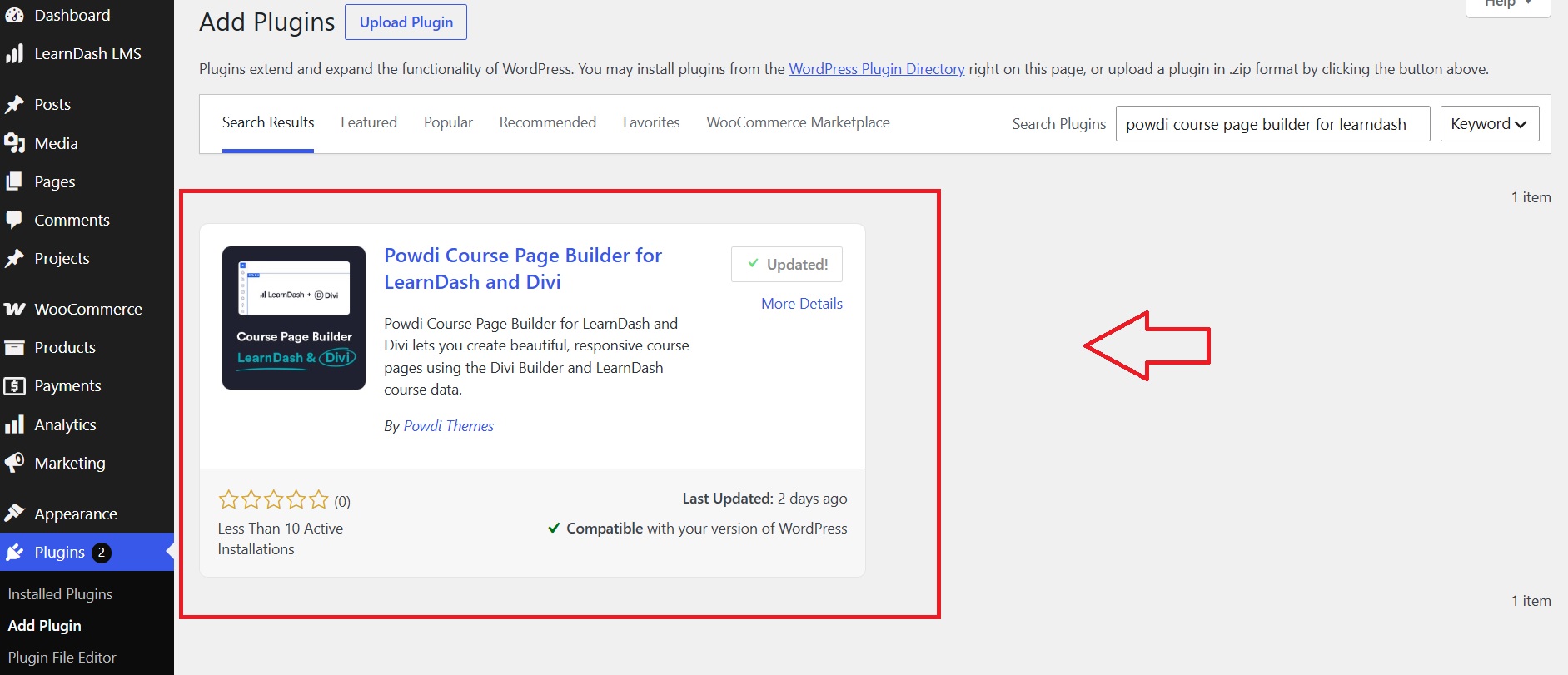
2. Search for Course Page Builder for LearnDash and Divi.
3. Click Install Now.
4. Once the installation is complete, click Activate.
You can also find the plugin in the WordPress Plugin Directory.
What Happens After Activation? #
There is no additional setup required. As soon as you activate the plugin, it automatically:
• Disables LearnDash’s default course progress and status bar.
• Disables the default course content list containing lessons, topics, and quizzes.
• Removes the extra spacing at the top and bottom of the course page.
• Removes the theme’s default title and sidebar from course pages, giving Divi control over the full page layout.
Your course page is now ready for you to design using the Divi Builder.
Important: The plugin removes the default LearnDash elements from their automatic positions. To display them in your custom design, you need to add them back using the available shortcodes or Divi 5 modules.
How to Build Your Custom Course Page #
Once the plugin is activated, you can design your course page like any other page in Divi. Add your own sections, rows, columns, images, headings, buttons, and other elements, then insert the LearnDash elements wherever they fit your design.
The steps depend on which version of Divi you use:
• Using the Plugin with Divi 4 — Add LearnDash elements using shortcodes and customize their appearance.
• Using the Plugin with Divi 5 — Add the native Course Info Bar, Course Action Button, and Course Content modules, and customize them directly in the Visual Builder.
Prefer a Ready-Made Design? #
If you don’t want to build your course page from scratch, you can start with our four free Divi LearnDash course page layouts. Download a layout, import it into your website, and customize it to match your brand.
How to Restore the Default Course Page #
If you want to return to the standard LearnDash course-page layout, simply deactivate Course Page Builder for LearnDash and Divi from Plugins → Installed Plugins.
The plugin’s changes are reversible, and LearnDash’s standard course-page elements will be restored.
Need Help Customizing Your Course Page? #
For a detailed walkthrough of designing and styling your course page, see our tutorial:
How to Design Your LearnDash Course Pages with Divi
You can also visit the plugin page on WordPress.org for additional information and support.