


In This Article
2. One layout. One place to edit it. Everywhere it appears.
3. How to use it
4. Where this genuinely helps
4.1. Content you maintain in one place
4.2. Places the Divi Builder doesn’t reach
4.3. Designed blocks inside blog posts
4.4. Programmatic and cross-platform use
5. A quick note on shortcodes and Divi 5
6. Give it a try
So you copy it. Paste it onto page two. Page three. Twenty blog posts.
And then, three months later, the offer changes.
Now you’re opening twenty posts, one at a time, editing the same box over and over, hoping you don’t miss one.
There’s a much better way — and it’s free.
One layout. One place to edit it. Everywhere it appears.
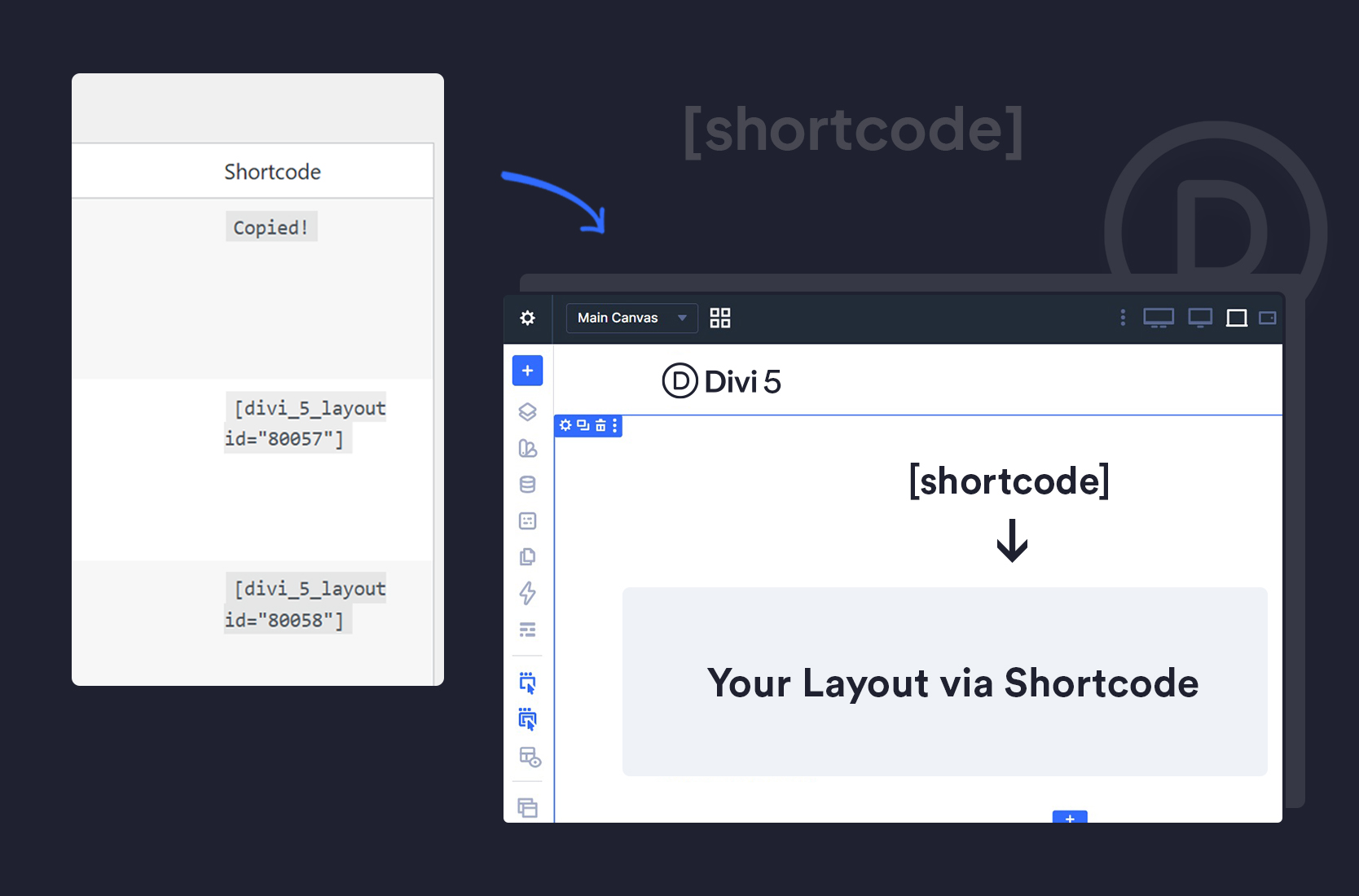
You build your layout once in the Divi Builder and save it to your Divi Library. Then you place it wherever you want using a shortcode.
Change your mind later? Edit the Library layout once. Every place that shortcode appears updates automatically.
Twenty posts. One edit. Done.
It does two things:
2. Adds a one-click “copy shortcode” button in your Divi Library, so you never have to hunt for layout IDs
How to use it
Build your section, row, or module in the Divi Builder and save it to the Library, exactly as you normally would.
Step 2 — Copy its shortcode.
Go to Divi → Divi Library. You’ll see a new “Shortcode” column next to each layout. Click it to copy — a small “Copied!” confirmation appears.
The shortcode looks like this:
[divi_5_layout id="123"]
Any post, page, widget area, custom post type… anywhere WordPress renders shortcodes.
That’s the whole thing.

Where this genuinely helps
Content you maintain in one place
A promo banner across your blog. A pricing table on several landing pages. A “book a call” box at the bottom of every service page. An author bio. A seasonal offer.
Anything you’d otherwise be copying — and then re-editing every copy, forever.
With a shortcode, the Library layout is the single source of truth. You edit it once and it propagates everywhere. That’s not just a time-saver; it’s the difference between your site staying consistent and slowly drifting out of sync as you forget which pages you updated.

Places the Divi Builder doesn’t reach
Widget areas. Sidebars. Footers managed elsewhere. Custom post types created by other plugins. Content areas belonging to third-party tools. Templates in a non-Divi theme.
The Builder can’t open those. A shortcode goes straight in.
So you design in Divi — properly, visually, with the tools you know — and then place that design somewhere Divi couldn’t otherwise go. Your sidebar CTA finally matches the rest of your site, because it is the rest of your site.

Designed blocks inside blog posts
If you’ve built a blog post template in the Divi Theme Builder, opening an individual post with the Divi Builder overrides that template. So how do you drop a designed CTA halfway through an article without losing the template you carefully built?
With a shortcode. Write the post normally, paste the shortcode where you want the designed block, and your Theme Builder template stays exactly as it is.
Programmatic and cross-platform use
A quick note on shortcodes and Divi 5
Divi 5 moved its own core page-building framework away from shortcodes — that’s an internal architecture change, made for performance and better alignment with WordPress blocks. But regular WordPress shortcodes, from plugins or your own code, work exactly as they always have.
Using shortcodes to reference Divi Library templates remains a perfectly good workflow, and a popular one.
