


In This Article
2. The dashboard is prime real estate you’re not using
3. First, understand what the dashboard actually is
4. The manual route: editing the dashboard with code
4.1. Option 1 — Add content with a hook
4.2. Option 2 — Override the template entirely
4.3. Where the code route runs out of road
5. The free way: what Divi My Account Page Lite can do
6. The powerful way: a fully custom dashboard built in Divi
7. Pulling it together
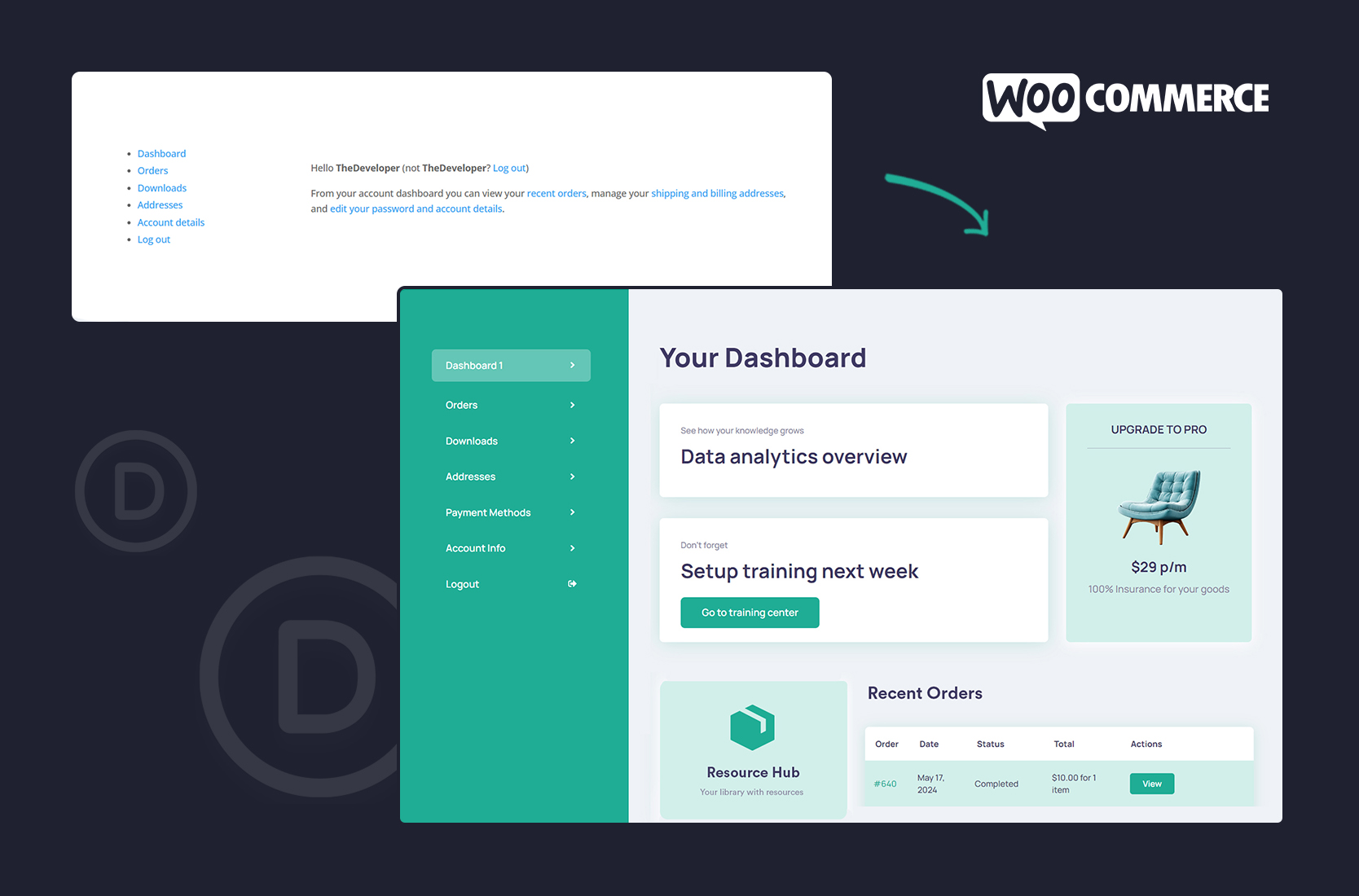
“Hello Mariya (not Mariya? Log out)”
Then a short paragraph telling you that from your account dashboard you can view your recent orders, manage your shipping address, and edit your password.
That’s it. That’s the dashboard. It’s the first thing every returning customer sees when they log in… and on almost every WooCommerce store in the world, it says exactly the same thing.
It’s not broken. It’s just completely, forgettably empty.

The dashboard is prime real estate you’re not using
It’s the landing spot for your logged-in customers — the people who already bought from you, already trust you, and are most likely to buy again. They arrive here first, every single time.
And you’re greeting them with a generic sentence about editing their password.
Imagine a physical shop where your best regulars walk in and the first thing they see is a laminated sign explaining where the exits are. That’s your dashboard right now.
It could be doing so much more: welcoming them properly, showing them what’s new, pointing them to a getting-started guide, offering a loyalty perk, surfacing their recent orders in a way that actually looks designed. Instead, it does almost nothing.
It’s a small thing that compounds — we’ve written about what the account page quietly costs you when it’s left alone: Your WooCommerce My Account Page Is Quietly Costing You Repeat Sales.
Let’s fix it.
First, understand what the dashboard actually is
Your WooCommerce My Account page serves each of its sections through endpoints — URL-based sub-pages that WooCommerce generates. The dashboard is simply the default one, the view you land on when no other endpoint is specified.
That matters because it means the dashboard can be treated like any other tab. Its content can be replaced, added to, or moved around — once you know where it lives.
And where it lives is a template file.
The manual route: editing the dashboard with code
Option 1 — Add content with a hook
function pt_custom_dashboard_content() {
echo 'Welcome back!
';
echo 'Here are your latest downloads and a 10% code for your next order.
';
}
add_action( 'woocommerce_account_dashboard', 'pt_custom_dashboard_content' );
You can also add content around the account navigation menu:
add_action( 'woocommerce_before_account_navigation', 'pt_before_nav' );
function pt_before_nav() {
    echo 'Need help? Get in touch. ';
}
Option 2 — Override the template entirely
In your child theme, create this folder structure:
your-child-theme/
    woocommerce/
        myaccount/
            dashboard.php
Now you can rewrite the greeting, remove the default paragraph, add your own HTML — whatever you want.
Where the code route runs out of road
But look at what you’re actually doing: writing HTML inside PHP echo statements. Want a two-column layout with an image on the left and a welcome message on the right? You’re hand-coding it. Want it styled to match your Divi site? You’re writing CSS by hand and hoping it holds together. Want to pull in the customer’s recent orders and place them inside a designed section with a promo banner underneath?
Now you’re building a whole layout system in PHP — and you have Divi sitting right there, unused.
There’s a much better way.
The free way: what Divi My Account Page Lite can do
Style the default dashboard text. Using the My Account Classic module, you can style the default WooCommerce dashboard content visually in Divi — fonts, colours, spacing — so at least it looks like part of your store rather than a plain default.
Skip the dashboard entirely. This one’s a genuinely useful trick. Lite lets you set a custom landing tab, so when a customer logs in, they land wherever you choose. If your dashboard has nothing useful on it, send people straight to their Orders instead. One setting, and your customers immediately arrive somewhere that actually helps them.
For a lot of stores, that alone is an improvement.

Want a designed account page to start from?
If you're going to use Lite anyway, you don't have to design your account page from a blank canvas.
We've put together a free pack of four ready-made Divi layouts for the WooCommerce My Account page. Import one, adjust the colours and fonts to your brand, and you've got a proper designed account area in a few minutes.

Tell us where to send them:
🎉 Thank You — Your Download Is Ready!
Your Free Divi My Account Layout Pack is ready to download.
We’ve also sent the download link to your email, so you can access it anytime.
What to do next
These layouts work together with our free Divi My Account Page Lite plugin — if you haven’t installed it yet, you can get it from the WordPress repository.
New to importing Divi layouts? This guide walks you through the whole thing in a few minutes: How to Import the Free Divi My Account Layout Pack.
The powerful way: a fully custom dashboard built in Divi
With Divi My Account Page Pro, the dashboard becomes a blank canvas you design in the Divi Builder. Not PHP. Not a template override. Actual Divi layouts, with everything you already know how to build.
Here’s what that means in practice.
That’s a real dashboard. Not a laminated sign about the exits.

Pulling it together
You can improve it three ways: hook into it with code if you enjoy PHP, tidy it up for free with Lite (style the default text, or skip the dashboard entirely with a custom landing tab), or design it properly in Divi with Pro — replacing, rearranging, and building whatever you actually want your customers to see.
If you’d like to go further with the rest of the account area, these two guides are natural next steps: How to Add Custom Tabs to the WooCommerce My Account Page in Divi and How to Style the WooCommerce Login & Registration Page in Divi 5.
