


In This Article
2. Before you start
3. Step 1 — Download the free layout pack
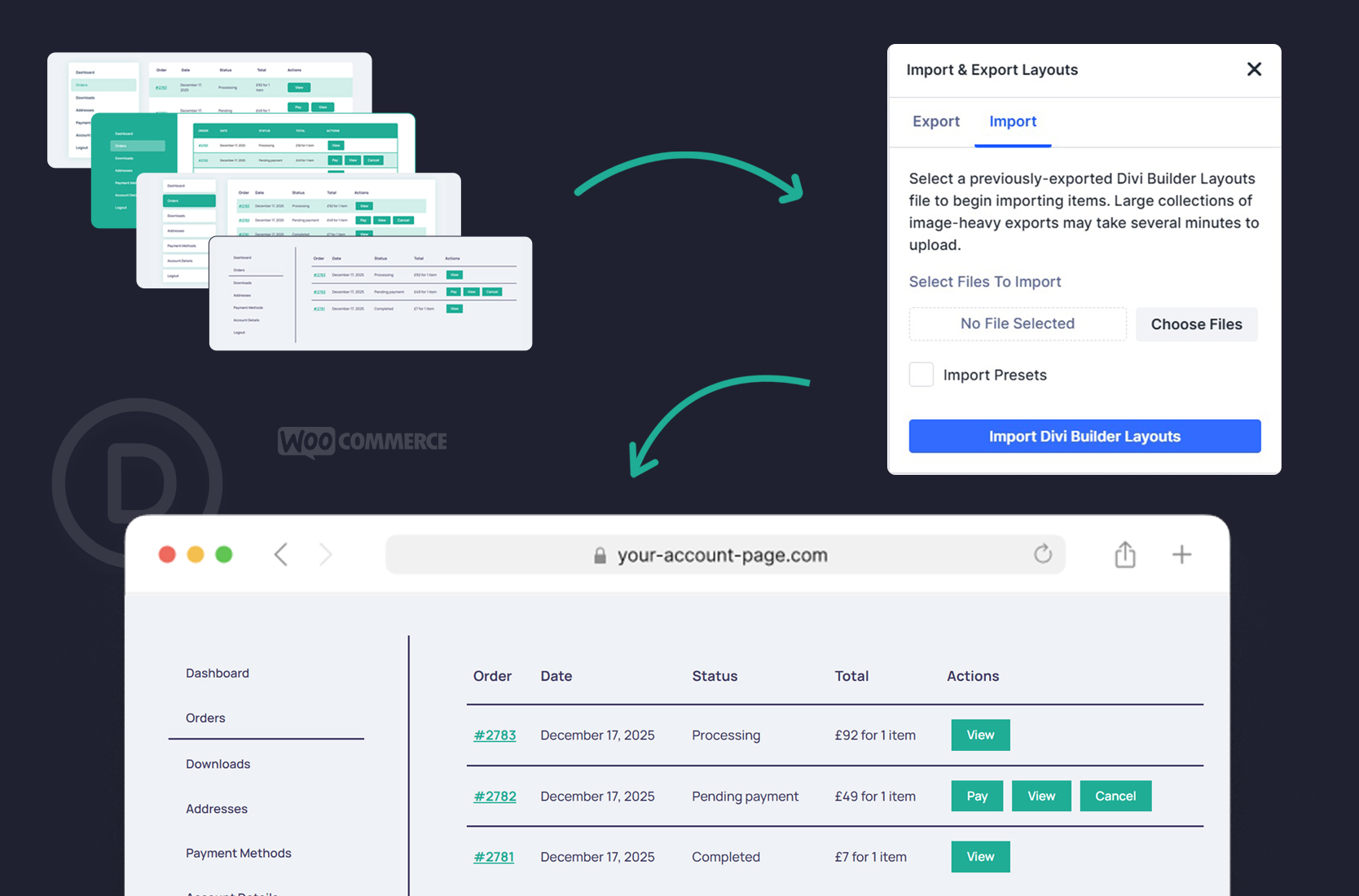
4. Step 2 — Import the layouts into Divi
5. Step 3 — Open your WooCommerce My Account page
6. Step 4 — Load your chosen layout
7. Step 5 — Make it yours
8. Step 6 — Customise your tabs
9. Step 7 — Take a look
10. A few tips for the best result
11. Want more control? The Pro version
12. That’s it
Here’s the shortcut: you don’t have to design it from scratch.
This guide walks you through the whole process, step by step. Nothing technical, no code — just a few clicks.
Before you start
- WordPress installed
- WooCommerce activated
- Divi Theme (or the Divi Builder) active
- Divi My Account Page Lite installed

Step 1 — Download the free layout pack
Inside, you’ll find a single .json Divi layout file containing all four designs. That one file is everything you need.

Step 2 — Import the layouts into Divi
Go to WordPress Dashboard → Divi → Divi Library, then click Import & Export (the little icon near the top).
In the window that opens:
- Click the Import tab
- Choose the .json file you just downloaded
- Click Import Divi Builder Layouts

Step 3 — Open your WooCommerce My Account page
Go to Pages → All Pages and find the page WooCommerce uses for the account area — it’s usually called My Account, with the slug /my-account/.
Click Edit with Divi to open it in the builder.
Step 4 — Load your chosen layout
- Click on the Plus icon Add Section
- Click on the tab Add From Library
- Pick one of the four layouts you imported (each one is a Section)
- Apply it to the page

Step 5 — Make it yours
Open your My Account page in the Divi Builder and click the My Account Classic Module, then head to the Design tab. From there you can control:
- Font and text size
- Tab colors and hover effects
- Button styling
- Spacing, borders, and background
A quick tip: start with your accent colour and your fonts. Those two small changes alone make the layout feel completely custom to your store.


Step 6 — Customise your tabs
Go to Divi My Account Page → Settings, where you can:
- Rename tabs (endpoints)
- Reorder the menu items
- Add icons
- Set a custom landing tab


Step 7 — Take a look
Your new layout is live. Where there used to be a plain default page, you’ve now got a designed, branded account area — better navigation, your styling, and a genuinely nicer experience for the customers who come back to it most.

A few tips for the best result
- Start with one layout. Pick the design closest to your brand, then adjust from there rather than trying them all at once.
- Don’t redesign everything in one go. Begin with the Dashboard tab, get it right, then expand.
- Think of it as a customer hub. A lot of store owners grow the account page into a proper portal over time — for downloads, membership content, courses, or support resources. If that’s where you’re heading, How to Customize the WooCommerce Account Dashboard in Divi is a good next read.
Want more control? The Pro version
But if you find yourself wanting to go further — adding your own custom tabs, showing or hiding tabs by user role, replacing WooCommerce’s default sections with full Divi layouts, or building a true customer dashboard — that’s what Divi My Account Page Pro is for. It picks up exactly where Lite leaves off.

That’s it
If you haven’t grabbed it yet:
And if you get stuck anywhere, just reach out — we’re happy to help you get it working.
